


inikolova
-
Posts
696 -
Joined
-
Last visited
Content Type
Profiles
Forums
Events
Articles
Marionette
Store
Everything posted by inikolova
-
Ok, I am glad you found the culprit. Please let me know if I can help with anything else.
-

Cloud Rendering with traditional rendering
inikolova replied to Tim Harland's question in Troubleshooting
Hi @Tim Harland, I am sorry to hear that you are having issues with referenced geometry. There are a few prerequisites for referenced files to work on the Cloud: 1. The referenced files must be uploaded to the same storage location as the master .vwx file. For example, if your master .vwx file is saved on Vectorworks Cloud Services storage, the referenced files must already be uploaded at the time you submit the master file for processing. For example if your .vwx file is saved on your Desktop and you submit it for Publishing on the cloud, the referenced files won't be uploaded, so the cloud rendering would not contain the geometry, unless your master .vwx file contains the saved reference cache. 2. Both the master and the referenced files need to be converted to the latest Vectorworks file version (which is 2023 currently). For example, if your .vwx file is created in Vectorworks 2022, you can submit it for processing, but the Vectorworks 2023 running on the Cloud won't be able to use your referenced files even if they are uploaded to the same storage, because they are an older version. I hope that helps. Please let me know if I can assist you further in any way. Best regards, Iskra Nikolova- 1 reply
-
- 1
-

-
Hello @jnr, It is expected for the 3D model to contain all objects that are visible at the time of the export. I cannot think of anything that would cause this behavior by design. I looked at prior jobs on our servers and I think you are not using the clip cube export settings, so you should be able to see all visible geometry in your model. Your files appear to be coming from Dropbox storage though. I wonder if somehow Dropbox could be sending us an older version of your file to complete the job with? Would you mind uploading a copy of your file to cloud.vectorworks.net, and see if the 3D model gets generated successfully from there? That would at least give us an idea if it is a Dropbox specific issue, or an issue with the export in general. Thanks, Iskra Nikolova
-
Hi @jeff prince Thanks for trying this feature and for providing your feedback. Some of the items you are mentioning are specific to the technology being used, so we have no control over these limitations. Check this article for more details: https://cloud.vectorworks.net/portal/help/pages/create-a-room-plan-with-lidar/?app=IOS_NOMAD I think what this press release was aiming to convey as a message is that the framework automatically detects walls and doors and other object types to create the room plan. I did not realize that the way it is phrased, it might imply automatic conversion to native Vectorworks objects upon import. I think this would be really nice future project though. Vectorworks 2023 SP4 will support USDZ import, so you will see object names, like Chair, Wall, Table in the Data pane of object info palette. But the imported objects will be meshes. I hope this clarifies it a bit. Best regards, Iskra Nikolova
-
"Unsupported file version or invalid Vectorworks file" error on Cloud Services
inikolova replied to Christiaan's question in Troubleshooting
Thanks for reporting, Christiaan! -
"Unsupported file version or invalid Vectorworks file" error on Cloud Services
inikolova replied to Christiaan's question in Troubleshooting
Hi Christiaan and Ben, Our engineers are looking into this. It sounds like an issue specific to .vwxw files. To work around this problem, you could save the current copy of your working file as a .vwx file and try publishing from there. I know this is kind of inconvenient, but I hope we will have a fix soon. Best regards, Iskra Nikolova -
Cloud Services: more information about sync progress
inikolova replied to Christiaan's question in Wishlist - Feature and Content Requests
Hi Christiaan, When we implemented LAN sync, we also added a way to check peer info for testing purposes, but this was not exposed to the user. I think we should be able to display this info in a similar way, along with additional information. I opened a request for our engineers to look into that. Best regards, Iskra Nikolova- 1 reply
-
- 4
-
-

-
- vcs
- vectorworks cloud service
- (and 1 more)
-
Vectorworks Cloud Services for Teams
inikolova replied to Christiaan's question in Wishlist - Feature and Content Requests
Hi Christiaan, Thanks for your feedback! I understand the need for such functionality and we will consider it as we make plans for future improvements. We have the same request from others already, so I went ahead and added your vote to it. Best regards, Iskra Nikolova- 1 reply
-
- 1
-
-
- cloud services
- vcs
- (and 1 more)
-
Can we generate 3D models with Cloud Services from Project Files?
inikolova replied to Christiaan's question in Troubleshooting
You're welcome! I am glad it worked. I will make sure we update the Help with that information. -
Can we generate 3D models with Cloud Services from Project Files?
inikolova replied to Christiaan's question in Troubleshooting
I just got a tip from our Project sharing pro 🙂 . You change the visibilities in your Working File and Save & Commit. In the commit dialog, you have to make sure you choose to commit “view settings”. Note: only users with Project permissions or higher can commit view changes. I haven't tried this yet, but I thought I would share so you can try also. Maybe it will work for what you are trying to do. -
Can we generate 3D models with Cloud Services from Project Files?
inikolova replied to Christiaan's question in Troubleshooting
Well, it is enabled and the job succeeds, but the question how you control the views remains. -
Can we generate 3D models with Cloud Services from Project Files?
inikolova replied to Christiaan's question in Troubleshooting
Hi @Christiaan, Thanks for pointing that out! I will look into it. To be honest, I am not sure how the visibility of objects is set in the project file. I need to investigate and get back to you (and also update the Help article). Perhaps you can try refreshing your working file to be up to date with the project file and then generate the 3D model from there, to set the correct object visibilities? Best regards, Iskra -
Export Files via Vectorworks Cloud Service
inikolova replied to maxstk's question in Wishlist - Feature and Content Requests
Hi @maxstk, Thanks for your feedback! We already have this wish in our project tracking system. I added your vote for it. We are considering to implement other Cloud job types that offload time-consuming tasks to the Cloud, so this is on our radar. Best regards, Iskra Nikolova- 1 reply
-
- 1
-
-
Vectorworks 2023 Service Pack 3 Available for Download
inikolova commented on JuanP's article in Tech Bulletins
Hi @FKA, In the Photos to 3D model dialog, make sure you select the desired detail of output model. "Full" is the default, but maybe you used a lower value? (see the screenshot below) When we evaluated the "old" photogrammetry algorithm against the Apple's framework, we found that lower amount of geometry didn't necessarily mean lower quality reproduction. The new algorithm is just more optimized, so it doesn't create unnecessary geometry, which the old algorithm was doing. This results in a smaller file, which is easier to work with in Vectorworks. This also allowed us to be able to reproduce geometry from photo sets that were failing with the old algorithm. If you would like me to take a look at your specific case, please feel free to send me a direct message with more details, and I can investigate further. Best regards, Iskra Nikolova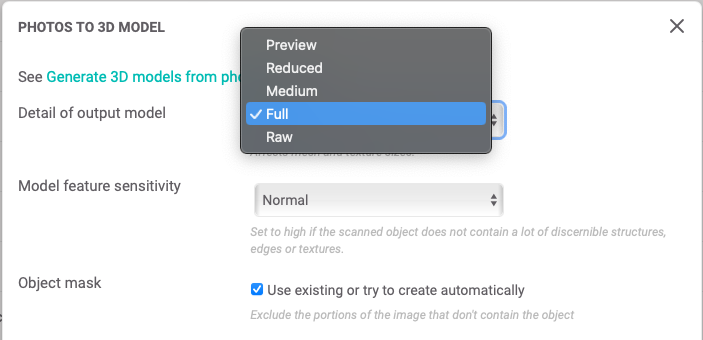
-
Hi @Carla A, I am sorry to hear that you are having issues with the Cloud. Please let me know the username of the account that is experiencing this problem in a personal message (or email me at inikolova@vectorworks.net), and I will investigate. Best regards, Iskra Nikolova
-
LiDAR equipped device running iOS 16 is required for Room Plan. The Object Capture (photogrammetry) uses LiDAR and depth data to aid in object reconstruction, but it is not required. Photos from any camera/drone are supported, they just won't produce an object in the real scale and orientation and will need to be adjusted after being imported into Vectorworks.
-
@kwik This post is relevant to an algorithm which we no longer use (replaced recently with a better one). Please refer to this article for the most up-to-date information: https://cloud.vectorworks.net/portal/help/pages/capture-photos-for-3d-models/ I don't think the way you captured your photos relate to the issue you are reporting though. I posted a reply in another forum post that you submitted with the same issue. Best regards, Iskra Nikolova
-
The Cloud just had a new version deployed. Can you please retry to see if it works now? I tried to reproduce your issue by naming other files the way you have named yours and I was not able to reproduce the problem. I'll continue investigating if it is still not working for you. Best regards, Iskra Nikolova
-
@Oaktown, I am sorry you are having difficulties making it work. I suspect it's returning "No such xattr: com.apple.quarantine" because the quarantine has already been removed. Please make sure you are correctly replacing the current files in the Vectorworks installation folder with the ones provided in the zip. Vectorworks Remote.vwlibrary should go to: Plug-ins The contents of the VWRemoteServer.framework folder should replace the contents of the Plug-ins/VWRemoteServer.framework folder Make sure the old ones are completely removed from the Vectorworks installation folder. We tried this .zip on a few machines and it worked on all of them, so I really hope it will work for yours too. By the way, these are for Vectorworks 2023. Are you trying with a prior version by any chance? Best regards, Iskra Nikolova
-
@Oaktown Please unzip the attached file and drag its contents into the Vectorworks Plug-Ins folder, replacing the existing ones. This should be able to fix the Remote crash. Note, you need to run the Quarantine command as follows: -In Terminal type: xattr -d com.apple.quarantine make sure there is a space, after ‘quarantine’, then drag the attached .zip file into the Terminal window and press <return> -Unzip the file using the Mac operating system's decompression option, do not use another decompression utility. Please let me know if this doesn't work for you. Best regards, Iskra Nikolova Remote plugin M1 fix.zip
-
Could be a printer calibration issue?
-
@Peter W Flint, I am glad you are now getting the proper result! Yay!!! I think the reason why you had these mappings on the Cloud was that you had them in your local Vectorworks mappings. You probably opened a file that contained these fonts before you had them installed on your machine. And when you submit a job to the cloud, your local mappings are automatically synced to the Cloud. Best regards, Iskra Nikolova
-
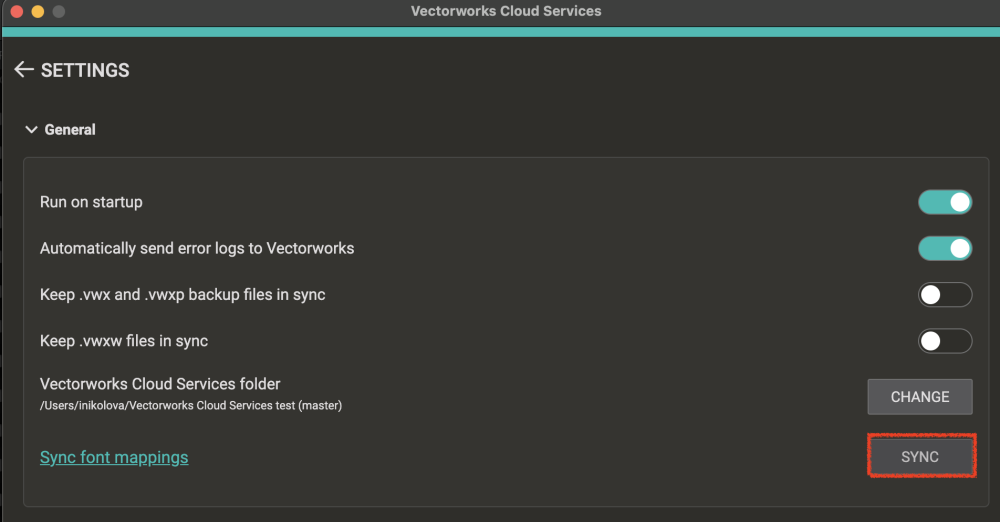
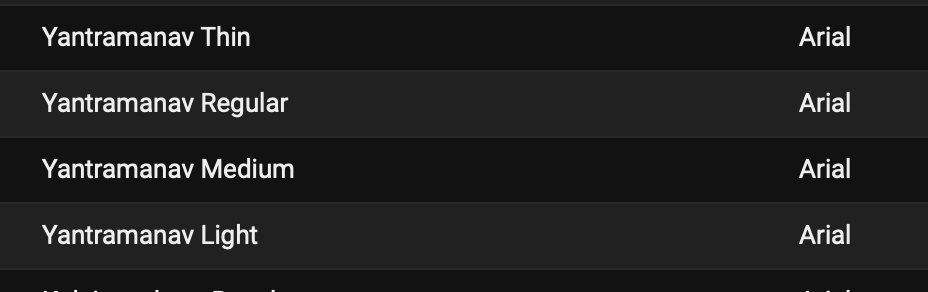
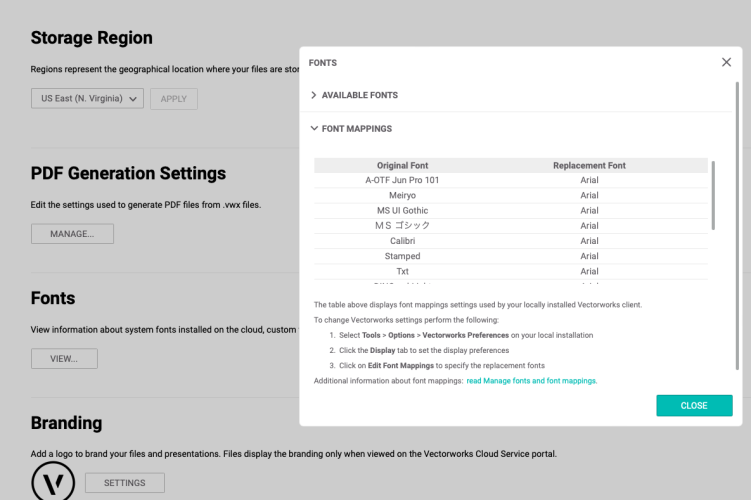
@Peter W Flint, I investigated this in more detail and here is what I think is the cause of your problem. During file generation, the cloud server searches for fonts using the following priority: 1. Cloud server system fonts 2. Current font mappings in your cloud preferences 3. Custom fonts that you have uploaded to cloud storage It looks like the Yantramanav font you are using is currently mapped to Arial in your cloud font mappings. To fix this, you need to delete these font mappings from your Vectorworks. In the Vectorworks preferences; on the Display tab, click the Edit Font Mappings button, and delete these mappings. Quit Vectorworks to save the font mapping preferences. After this, open the Vectorworks Cloud Services settings and click the SYNC button to sync your local mappings to the cloud. Go to https://cloud.vectorworks.net/portal/account/ and make sure these font mappings have disappeared. After this, the Cloud Publish should be able to give you the expected result. Please let me know if this doesn't help. Best regards, Iskra Nikolova
-
I agree with you. The issue you are seeing is likely due to some specific properties of the font you are using. I will do more research and try to help with your specific situation.
-
@Rick Berge Thanks for chiming in. I was not sure if Peter's issue was due to font platform differences or because his custom font is getting mapped to Arial. I will try to research some more and find out if font mapping is the culprit in his case.